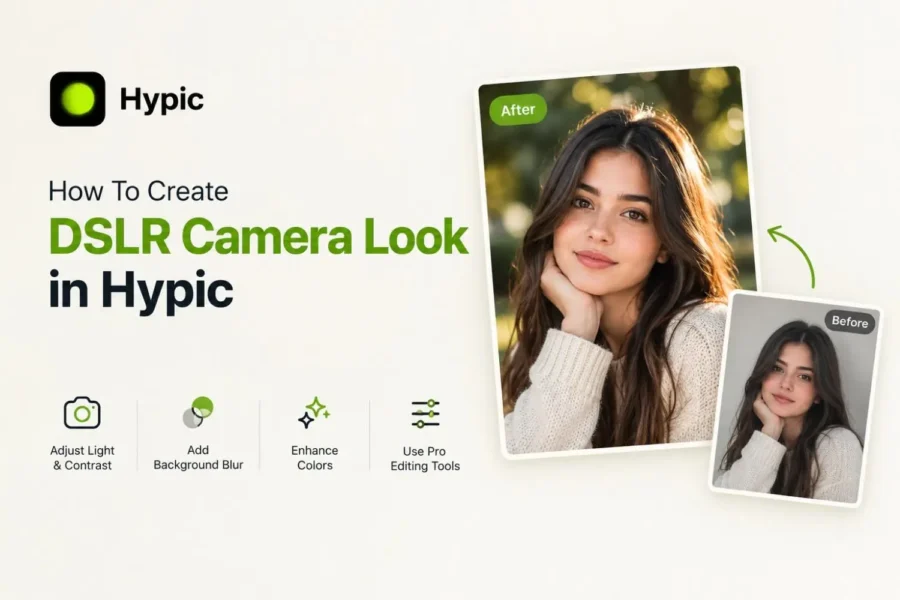
How to Create DSLR Camera Look in Hypic
Users often wonder if the picture taken from their phone can be cinematic like that of a DSLR. This thinking usually ends up with a single word: No. But with some editing tech, these are not the users who know how to create a DSLR camera look in Hypic.
The reason why phones cannot make a pic like that of a DSLR camera is that phones have lens limitations; they can have small sensors, and they rely on software for enhancing images. Moreover, cameras have dynamic ranges and allow shallow depth of field.
The good news is that you can overcome this with techniques, apps, and accessories and can take your photography to the next level. For this, the Hypic app is the gateway to achieving professional-looking cinematic photo edits. If you want to know how to create a DSLR camera look in Hypic, read this guide till the end.
Getting started in the Hypic app
Before starting your cinematic photo-editing journey and creating the DSLR camera look in this app for your picture, first you must have the Hypic app installed on your mobile device.
You can easily install the app from the App Store on your mobile devices. Once installed, open it to access its wide range of editing tools, but first you have to import your pic into Hypic. For this, locate the “Edit” option. It will ask you to select a photo from your device’s gallery.
Choose the photo you wish to edit, and it will be loaded to the app’s workspace. For the AI to enhance the image effectively, you must ensure that it has a clear subject and well-defined composition.
Replicating DSLR Depth of Field and Bokeh in Hypic
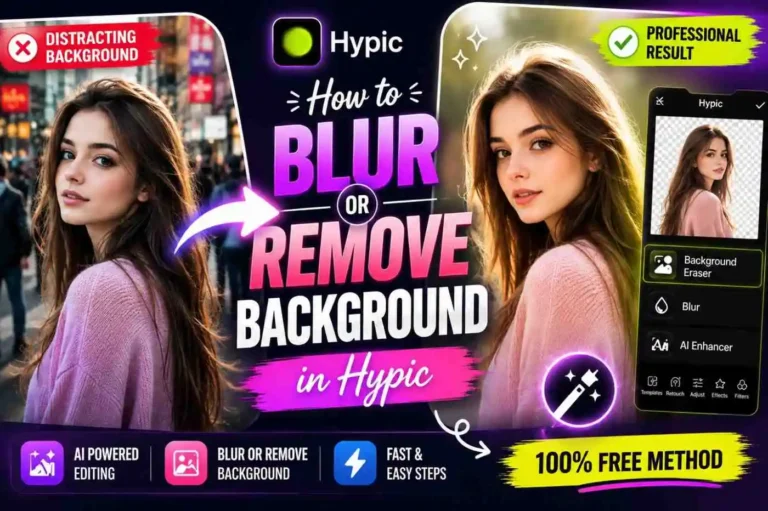
The bokeh effect is the aesthetic quality of the blur produced in the out-of-focus parts of the image. DSLR’s are well known for this effect. Just follow these simple rules to achieve this:
Style with Custom AI prompts and Cinematic Filters
DSLR cameras process colours with high dynamic range since they can capture a broad range of light. You can also experience this high-quality feature on your pictures using Hypic’s AI prompts and built-in camera filters.
Apply Camera Aesthetic filters
Go to Filters and select an option under Film, Retro, or Portrait. Experiment with various AI filters to find your preferred type.
Use AI Prompt Editing
Tap AI Prompt or AI Edit to customize the background atmosphere. You need to type descriptive prompts for this. If you find it difficult to write a prompt, just go to Google and find interactive and descriptive prompts for your preferred background type.
Blend Effect Intensity
To maintain the details of your original image, reduce the filter or AI opacity to 40 to 60%.
Fine-tune Post Processing
Digital camera photos are rich in contrast. You can use Hypic’s adjustment tools to give your pic contrast, sharpness, and exposure.
Adjust Exposure and Dynamic Range:
Under the Adjust menu, slightly increase the Contrast to add depth to your photo by making colours more vibrant. Gently lift shadows if needed to stimulate higher dynamic range.
Enhance Colour Vibrance
Instead of moving to overall saturation, boost Vibrance.It,will enhance less saturated areas of your photo, giving it a balanced look.
Apply Sharpening and Noise Reduction
Increase Sharpening to enhance the details of your picture, particularly of the subject. If the photo was shot in low light, apply a touch of Noise Reduction to decrease graininess.
Add a Vignette
Slightly adjust the Vignette to darken the image corners. It will draw the viewer’s attention to the centre of your image.
Conclusion
By combining refined background blur, AI prompt styling, and custom exposure adjustments in Hypic, you can create a DSLR camera look in your phone as it replicates its depth, sharpness, and dynamic colour directly on your smartphone. So, if you have read the guide and understood it, you are now ready to create cinematic photographs like those of a DSLR.