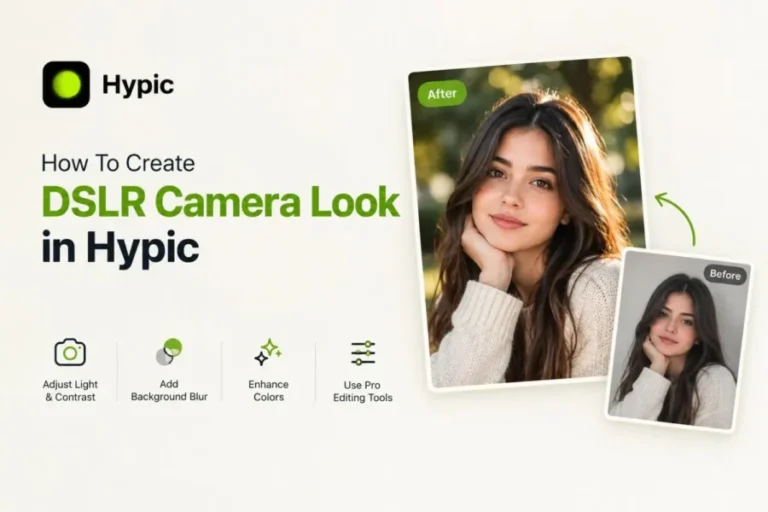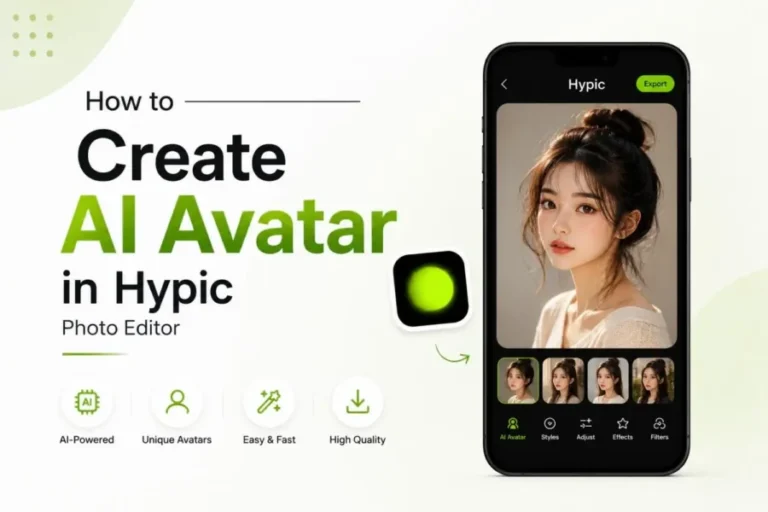
How To Create a Professional Profile Picture Using Hypic
Want to create a stunning and professional-grade profile picture for your social media account? If yes then there is no rocket science in it because Hypic APK allows you to create images effortlessly.
Using this advanced AI-integrated photo editor, you can enhance casual images into attractive, colorful visuals with AI-driven enhancement features in seconds. You have the freedom to customize images for multiple uses without any extra app management hassle. How? We have described in detail the step-by-step process so tick with the article till the end. As the article ends, you will be able to create and customize your profile picture.
What Makes Hypic Ideal for Professional Profile Pictures?
Hypic is an all-in-one photo editing solution that includes AI features to change normal mobile images into upgraded, crystal-clear visuals. Avoid manual editing procedures and choose a more efficient method to produce attractive graphics through smart AI tools. Hypic enables you to generate eye-catching images without using complex options or spending hours on enhancing images. Smoothly modify your profile pictures by improving facial appearance, balancing exposure, switching scenes and choosing captivating effects for a smooth look.
Benefits of Using Hypic for Professional Pictures
If you want to get more impressive profile pictures without spending money for a photoshoot or improving your editing skills, Hypic provides a quick way to create eye-catching photos every day.
How to Create a Professional Profile Picture Using Hypic
Creating a professional profile picture is as easy as walking in the park. You can create outstanding pictures following a few easy steps that are given below. Let’s learn and craft professional-grade images.
Step 1: Open the Hypic App
Run Hypic on your Android device or iPhone. If you don’t already have the app, download it first, then access the app to create your refined image.
Step 2: Upload the Photo You Want to Customize
Choose an image from your camera roll with proper lighting and capture your face easily. Choosing a good-quality photo allows you to produce a more visually appealing photo.
Step 3: Use the Enhance or Face Tool
After choosing the image, locate the image enhancer from the editing tool section to polish your image with just a single tap. Also, to enhance your image more precisely, you can use face tools to smooth skin, adjust facial structure, and sharpen features.
Step 4: Browse the Templates Tab
Check out the Templates tab and pick a style that matches your taste. You can switch between categories like Social Media or Filters until you discover the look that meets your preferences for your profile picture or personal identity.
Step 5: Improve the Final Touches
The next step is to open the manual editing tools to add the final enhancements. You can alter the exposure, background, colors, skin tone, or other options to make your image according to your preferences.
All done! Once you are done with your edits, export your final image in HD quality. You can share your updated photo as your LinkedIn profile picture, or on any social media network where you want to present yourself professionally.
Frequently Asked Questions-FAQs
Conclusion
Summing up, using Hypic AI Photo Editor, you can upgrade your pictures with its advanced and smart AI tools with just a few clicks. No matter if you are changing your profile image, preparing your portfolio, uploading images on social networks, or making polished, engaging visuals effortlessly. Unlock Hypic’s feature-rich editing tools to edit every component while capturing images that match your personality.